
Close Menu

    Subscribe to Updates

    Get the latest creative news from FooBar about art, design and business.

    What's Hot

    Synth Legends: The Sequential Prophet-5

    fevereiro 14, 2026

    Get the Moonwave FX Parallax multi-FX plugin for FREE at Audio Plugin Deals

    fevereiro 14, 2026

    Flame Sound offers Heatwave Cinematic Soundscapes FREE until February 15

    fevereiro 14, 2026
    Facebook X (Twitter) Instagram
    Facebook X (Twitter) Instagram Vimeo
    Producer Gang | Home of Producers
    • Home
    • Articles
    • Downloads
      • VST’s
    • Tutoriais
    • Plugins

      Get the Moonwave FX Parallax multi-FX plugin for FREE at Audio Plugin Deals

      fevereiro 14, 2026

      Flame Sound offers Heatwave Cinematic Soundscapes FREE until February 15

      fevereiro 14, 2026

      Get UJAM Usynth Euphoria for $1 with exclusive BPB coupon (+ FREE gift)

      fevereiro 13, 2026

      Get over 80% off reverbs from SSL and Eventide at Plugin Boutique

      fevereiro 13, 2026

      I Tested 4 Free DAWs for 2026 — Waveform Free Wins

      fevereiro 12, 2026
    • News
      1. Plugins
      2. VST’s
      3. Hip-Hop
      4. Billboard
      5. View All

      Get the Moonwave FX Parallax multi-FX plugin for FREE at Audio Plugin Deals

      fevereiro 14, 2026

      Flame Sound offers Heatwave Cinematic Soundscapes FREE until February 15

      fevereiro 14, 2026

      Get UJAM Usynth Euphoria for $1 with exclusive BPB coupon (+ FREE gift)

      fevereiro 13, 2026

      Get over 80% off reverbs from SSL and Eventide at Plugin Boutique

      fevereiro 13, 2026

      Glitchmachines – Polygon v2.1.0 for Windows

      abril 23, 2025

      Toontrack – EZbass 1.3.0 Update for Windows

      abril 23, 2025

      deltarray – GigLad PC Arranger 4.0.2 for Windows

      abril 23, 2025

      Toontrack – Funk Fusion EBX (SOUNDBANK)

      abril 23, 2025

      Drake Snippet Leaks Before J. Cole’s ‘The Fall-Off’ Drops

      fevereiro 6, 2026

      J. Cole Releases His “Last” Album ‘The Fall Off’

      fevereiro 6, 2026

      GloRilla’s Sister Says She’s “Obligated” To Give Family $2,500 Each

      fevereiro 6, 2026

      Bad Bunny Reveals What To Expect For Super Bowl LX Halftime Show

      fevereiro 6, 2026

      Beyonce Cowboy Carter Tour July 4th in Washington, D.C.: Best Moments

      julho 5, 2025

      Morgan Wallen Notches 18th Country Airplay No. 1

      julho 5, 2025

      Best Moments in Cardiff, Wales

      julho 4, 2025

      Bad Bunny ‘NUEVAYol’ Pro-Immigrant Video Arrives on Fourth of July

      julho 4, 2025

      Experience World-Class DJ Education in VR –

      fevereiro 12, 2026

      The Basics of Time Stretching and Pitch Shifting  –

      fevereiro 11, 2026

      25% off DJ courses & programs  –

      fevereiro 9, 2026

      pointblank Student Opportunities: November 2025 –

      fevereiro 6, 2026
    • Learn How to Sell Beats
    Producer Gang | Home of Producers
    • Home
    • Plugins
    • Hip-Hop
    • News
    • Learn How to Sell Beats
    Home»Articles»DAW Unable to Detect MIDI Controller on Windows? Try This
    Articles

    DAW Unable to Detect MIDI Controller on Windows? Try This

    Producer GangBy Producer Gangabril 23, 2025Nenhum comentário4 Mins Read
    Facebook Twitter Pinterest LinkedIn Tumblr WhatsApp VKontakte Email
    Audio Mentor
    Share
    Facebook Twitter LinkedIn Pinterest Email


    Updated: 5th August 2021

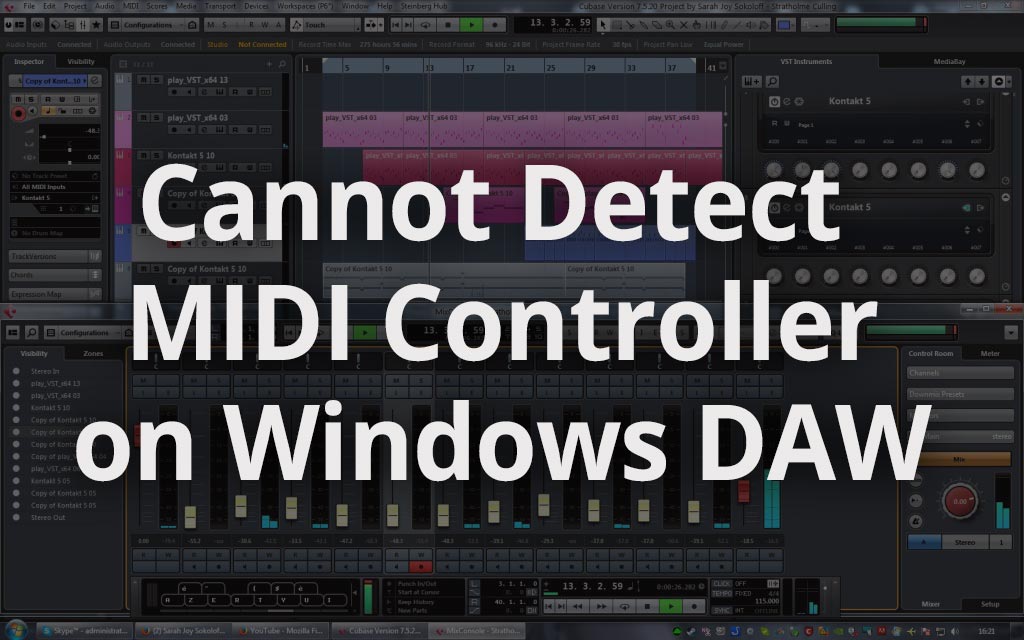
    Over the past few months, I’ve been trying lots of MIDI controllers on my Windows computer. Then last week, when I tried using a new MIDI controller, the Korg microkey2 Air, it didn’t work on my computer.

    My DAW, Cubase couldn’t detect the MIDI controller as an input. Even Windows wasn’t able to recognize the controller when I plugged it in.

    Initially, I thought the MIDI controller was faulty but having tried it on my iMac, the MIDI controller worked. I figured the problem must be with the setup on the Windows computer.

    So I dug in a little and tested all sorts of configurations on my Windows laptop. After 2 frustrating hours of installing, uninstalling, and troubleshooting, I finally found the answer to my underlying MIDI controller problem.

    You can only use up to 10 MIDI ports on a Windows computer.

    It’s ridiculous to be only able to use up to 10 MIDI devices on a Windows computer, even on Windows 10 today. (Never had such a problem on a Mac). But then again, I don’t think we have a choice.

    Fix – MIDI Controller Not Working in Windows DAW

    To make space for new MIDI controllers, you’d have to uninstall any redundant MIDI device in your Windows computer to make space for the new MIDI controllers that you want to use.

    Doing this manually means having to go into system configurations and finding the exact driver to delete.

    Luckily, Korg’s USB-MIDI driver includes a USB-MIDI uninstaller device tool that not only removes KORG MIDI devices but other MIDI devices as well.

    Note: The page doesn’t mention anything about the uninstaller, but don’t worry. It comes included with the driver package. 

    Watch the video below to see how I fixed it. I made the video back in year-2016, but the steps are similar.

    Step by Step Guide to Uninstalling MIDI Devices on Windows

    As I’m updating this post, I don’t use a Windows PC anymore for music production. I’m not going to get into the details of which OS is better for music production. You can read another post where I share my thoughts on whether you should buy a Mac or PC for music production.

    For now, here’s how to uninstall unused MIDI devices on your Windows computer.

    Step 1 – Download the Korg USB-MIDI Uninstaller

    Head over to Korg’s support and download the Korg USB-MIDI driver package. The uninstaller allows you to uninstall MIDI devices from other brands and manufacturers as well.

    KORG doesn’t list the driver to come with an uninstaller, but that’s OK. Just download it anyway and go to the next step.

    Step 2 – Install the Korg Driver (Choose the Uninstaller)

    Installing the KORG USB-MIDI Driver tools is quite straightforward. Just launch the .exe and you’ll see that you’ll really be installing a set of USB-MIDI tools on your computer.

    install-korg-usb-driver

    On the next page, you can choose to install everything or only the USB-MIDI Driver Uninstaller Tool.

    USB-MIDI-choose-uninstaller

    In my example, I chose to install everything to keep things simple. Once you’ve selected the location and tools to install, hit next and install.

    Step 3 – Launch the USB-MIDI uninstaller tool.

    Next,go to the folder where you installed the drivers and tools. On my computer, that’s installed under Local Disk (C) > Program Files (x86) > Korg > Korg USB-MIDI Driver.

    launch-the-uninstaller

    You’ll find the USB-MIDI uninstaller tool. One as a 32-bit application and the other as a 64-bit application. I just launched the 64-bit version (UnInstDrv).

    Once you launch the driver uninstall tool, you’ll see every MIDI device is installed on your computer.

    list-of-midi-devices

    Notice that some options are greyed out. Why that happens is because the Korg tool is filtering to only Korg MIDI devices, so that users don’t accidentally delete other MIDI devices which might be important for an application on their computers.

    However, you can click on the ‘Option..’ button and deselect the ‘Delete Korg MIDI Device only’, so that you can also delete the other MIDI Devices, not under Korg.

    korg-midi-device-only

    Once you deselect that option, click OK, carefully select the MIDI devices that you no longer use on your computer and proceed to uninstall them.

    And that’s it!

    When you plug in your new MIDI controller, your Windows computer should be able to detect it and register it as a MIDI device.


    I hope you’re able to fix the problem where your MIDI controller is not detected on Windows. Let me know in the comment section below if this guide helped you.

    If this guide helped you, consider buying me a coffee to say thanks! I’ll be indebted to your generosity, as doing so helps me create more tutorials like this.

    Thank you. I’ll list you as a contributor for the site too.


    Source link

    Share. Facebook Twitter Pinterest LinkedIn Tumblr WhatsApp Email
    Previous ArticleElevating House of Worship Sound with Apollo Networked Audio – Universal Audio
    Next Article Kevin de Vries & Mau P, Main Stage Melodic Techno

    Related Posts

    Synth Legends: The Sequential Prophet-5

    fevereiro 14, 2026

    Analog vs Digital vs Hybrid

    fevereiro 12, 2026

    How Mix Engineers Trick Your Ears

    fevereiro 10, 2026

    Classic Drum Machines: The Elektron Machinedrum

    fevereiro 7, 2026
    Demo
    Our Picks
    • Facebook
    • Twitter
    • Pinterest
    • Instagram
    • YouTube
    • Vimeo
    Don't Miss
    Articles

    Synth Legends: The Sequential Prophet-5

    By Producer Gangfevereiro 14, 20260

    The First True Analog Prophet Most synthesizers of the ’70s gave you two choices: monophonic…

    Get the Moonwave FX Parallax multi-FX plugin for FREE at Audio Plugin Deals

    fevereiro 14, 2026

    Flame Sound offers Heatwave Cinematic Soundscapes FREE until February 15

    fevereiro 14, 2026

    Get UJAM Usynth Euphoria for $1 with exclusive BPB coupon (+ FREE gift)

    fevereiro 13, 2026

    Subscribe to Updates

    Get the latest creative news from SmartMag about art & design.

    Producer Gang | Home of Producers
    Facebook X (Twitter) Instagram Pinterest
    • Home
    • Plugins
    • Hip-Hop
    • News
    • Learn How to Sell Beats
    © 2026 Producer Gang. Designed by Audio Escola.

    Type above and press Enter to search. Press Esc to cancel.